
Docs /Getting Started
AI Assistant — Basics
You are interacting with an AI system. The LeaRes assistant is a large language model. It can be wrong, and it can state wrong things confidently. Every output must be verified by you before you act on it. Read Limits of the AI Assistant at the end of this chapter — it is part of the instructions for use, not an optional note.
LeaRes includes an AI assistant that understands natural language commands in Italian and English. You can control the platform — from loading patients to running CFD simulations — by typing or speaking your request.
Getting Started
Open the chatbot panel from the bottom-right corner of the interface. Type your request in natural language. The assistant interprets your intent, calls the appropriate tools, and executes actions directly in the viewer.
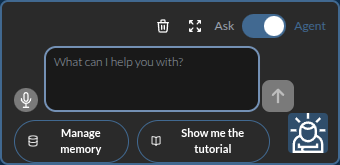
The widget includes the Ask / Agent toggle, a message box, a microphone for voice input, and shortcuts to Manage memory and Show me the tutorial.
Module availability: Commands marked below as Segmentation, Respirology, or Engineering require the corresponding client module to be enabled. The assistant will reply with a clear “module not available” message if you invoke a command outside your active subscription.
Key principles:
- Commands work in both Italian and English (e.g., “mostra aorta” = “show aorta”)
- The assistant remembers context: after loading a patient, you can say “segment lungs” without repeating the patient name
- Multi-step workflows are supported: “simulate flow in the aorta of patient Mario” triggers the full automated pipeline (anatomy preparation → simulation configuration → meshing and run → result loading)
Command Reference
Patient & Data Management
| What you can say | What happens |
|---|---|
| ”Load patient Mario from gemelli” | Opens patient CT scan in the 3D viewer |
| ”List patients” | Shows all patients in the current database |
| ”List patients from leiden” | Shows patients from a specific database |
| ”Create new patient John Smith” | Registers a new patient record |
| ”Add CT scan to patient Mario” | Opens the DICOM import dialog |
| ”Show patient info” | Displays metadata for the loaded patient |
| ”Delete patient Mario” (requires confirmation) | Removes patient record |
Project Management
| What you can say | What happens |
|---|---|
| ”Load project FDA” | Opens an engineering project in the viewer |
| ”List projects from wiccaDATA” | Shows all CFD projects in a database |
| ”Create new project Nozzle” | Creates a new empty project |
| ”Add geometry to project Nozzle” | Opens the STL/OnShape import dialog |
Database Selection
| What you can say | What happens |
|---|---|
| ”Select database gemelli” | Switches active database, expands in sidebar |
| ”Database wiccaDATA” | Same as above |
3D Anatomy Visualization
Once a patient CT is loaded and organs are segmented, you can control their 3D display:
| What you can say | What happens |
|---|---|
| ”Show aorta” | Displays the aorta in the 3D viewer |
| ”Show cardiac” | Displays entire cardiac group (heart, chambers) |
| “Show lobes” | Displays all 5 lung lobes |
| ”Hide trachea” | Hides the trachea from 3D view |
| ”Hide all” | Hides all anatomies |
| ”Set opacity of heart to 0.5” | Makes the heart semi-transparent |
| ”Change color of aorta to red” | Custom RGB coloring |
| ”Apply Lungs preset” | Applies medical color preset |
Supported organs: aorta, trachea, heart, lungs, liver, kidneys, spleen, pulmonary artery, airways, left/right upper/middle/lower lobes, and more.
Supported groups: cardiac, lungs, vessels, lobes, all.
Anatomy only. The assistant displays and measures anatomical geometry. Detection and quantification of pathological findings (nodules, emphysema, fibrosis, effusion) is outside the device’s intended use and is disabled. Commands of the form “show nodules” are no longer available.
Camera & View Control
View Layouts
| What you can say | What happens |
|---|---|
| ”3D” or “1-view” | Single 3D viewer |
| ”Quad” or “4-view” | 3D + Axial + Coronal + Sagittal |
| ”3D and coronal” or “2-view” | Side-by-side layout |
| ”Axial” | Single axial slice view |
| ”Sagittal” | Single sagittal slice view |
| ”Coronal” | Single coronal slice view |
Camera Presets
| What you can say | What happens |
|---|---|
| ”Anterior view” | Camera from the front |
| ”Posterior view” | Camera from the back |
| ”Left lateral” | Camera from the left side |
| ”Right lateral” | Camera from the right side |
| ”Superior view” | Camera from above |
| ”Inferior view” | Camera from below |
Camera Animation
| What you can say | What happens |
|---|---|
| ”Rotate 45 degrees on axial” | Rotates the 3D view 45 degrees |
| ”Orbit” | Full 360 degree rotation |
| ”Orbit around coronal” | Full orbit on a specific axis |
| ”Oscillating orbit” | Smooth back-and-forth oscillation (60 degrees) |
| “Zoom in” | Zoom closer |
| ”Zoom in 30%“ | Zoom by a specific amount |
| ”Zoom out” | Zoom farther |
Limits of the AI Assistant
This section is required reading. It covers what the assistant cannot do, how it fails, and what you are responsible for.
It is an AI, and it can be wrong
The assistant is built on a large language model. Language models generate plausible text; they do not verify truth. This produces two failure modes you will eventually meet:
- Fabricated content. The assistant may state a measurement, a parameter value, or an anatomical fact that is simply invented. Confidence in the wording is not evidence of correctness.
- Fabricated actions. The assistant may report that it did something — segmented an organ, launched a simulation — when it did not. LeaRes validates tool calls and replays the request when it detects this, but the check is not infallible.
Always confirm against the interface. If the assistant says an organ was segmented, look at the segmentation panel. If it reports a value, read it from the measurement tool. Never carry a number from the chat into a report without seeing it in the application.
It does not diagnose, and its output is not a clinical decision
The assistant drives the functions of a CE Class I medical device whose intended use excludes diagnosis (see Data Hierarchy, Intended Use, and Safety). No assistant output is a diagnosis, a treatment recommendation, or a prediction of clinical outcome for a patient — regardless of how the answer is phrased. Clinical judgement stays entirely with the qualified medical professional.
Where the assistant surfaces output from a Research Use Only module (Virtual Spirometry, Reinflation Analysis, Patient Insights, plaque morphometry), that output is for study and investigation only.
You are the human in the loop
Some actions are irreversible. The assistant asks for confirmation before destructive operations such as deleting a patient or an anatomy, and deletions additionally require an explicit confirmation flag.
Treat every confirmation prompt as a real decision point. Read what is about to be deleted or overwritten, and confirm only if it matches your intent. Do not develop the habit of confirming reflexively — automation bias, the tendency to accept a machine’s proposal without checking, is the single most likely way this tool causes harm.
Data leaves the platform
AI-assisted features send the content of your request, and the context needed to answer it, to third-party model providers, which may process it outside the EU. Before using the assistant with patient data, make sure this is covered by your institution’s data protection assessment and by the consent you hold. When in doubt, describe the case without identifying data.
What to do when the assistant is wrong
Report it. An incorrect output is quality-relevant information for a CE-marked device: it feeds post-market surveillance and, where an incident is serious, regulatory vigilance obligations. Record what you asked, what the assistant answered, and what the application actually showed — the text of AI responses is not retained server-side, so your record may be the only evidence.