
Docs /Active Learning Active Learning
Annotating with Masks
In a segmentation project the label is a mask: every voxel either belongs to a label or to nothing. This chapter covers the everyday path — pick up a case, paint, hand it back.
Finding Your Cases
Open Active Learning projects in the main navigation: it lists the projects you have been assigned to.
- Double-click a project — it loads into the work tree on the left, with its dashboard on the right
- Start next case on the dashboard takes the next case that still needs work, or double-click a specific case under the Cases branch of the tree
Annotation always starts from a project. The editor opens only on a case of a project you are assigned to, and works with that project’s labels. There is no annotate action in the patient tree or in the patient panel: the pencil next to an acquisition renames the scan. To annotate a CT that is in no project, ask a project manager to add it to one. A manager who opens a case that is not assigned to them sees the CT read-only.
Each row shows the case, its state (To do, In progress, Completed), when it was last saved, and how much has been annotated.
The Editor
The case opens with the CT in the main view and the slice bars around it. The toolbar across the top carries the tools; the label panel on the side selects which label you are painting.
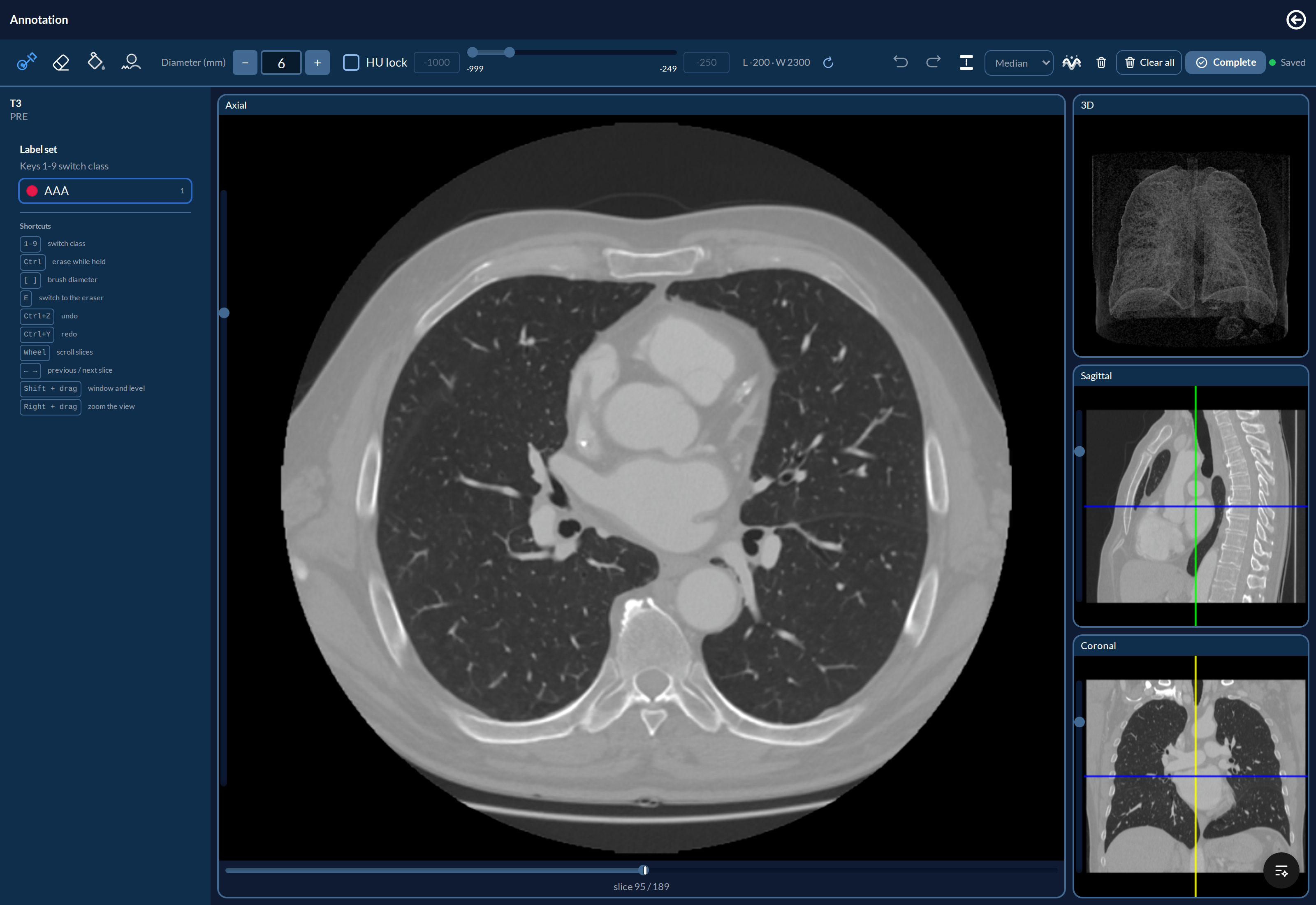
The three panels on the right follow the slice you are on: the crosshair lines mark where the axial view sits inside the other two. The slice counter under the main view tells you how far through the volume you are.
Tools
| Tool | What it does |
|---|---|
| Brush | Paints a disc of the active label |
| Eraser | Removes the active label under the cursor |
| Intensity fill | Flood-fills a region within a tolerance you set in HU |
| Smoothing brush | Smooths the edge where you drag, instead of painting |

The diameter sets the brush size in millimetres. HU lock restricts painting to voxels within an intensity range, so a stroke that strays outside the tissue you are following does not spill. The range has a slider for a quick sweep and two boxes for typing the numbers, which is what you want when you already know the window for the tissue.
Intensity fill refuses a fill that would cover most of the slice and tells you what percentage it would have taken, rather than flooding the image and leaving you to undo it.
Two commands act on a whole class at once rather than under the cursor:
| Command | What it does |
|---|---|
| Smooth the active class on this slice | Tidies the edges of the whole class. The method — median, opening or closing — is picked next to it |
| Interpolate slices | Paint the same class on two slices at least two apart, then interpolate to fill everything between them |
Hold Shift and drag to adjust window and level without painting. Ctrl+Z and Ctrl+Y undo and redo strokes. The readout near the cursor gives its position twice — in voxels and in millimetres — so a finding can be described in either frame without converting it by hand.
Clearing
Two buttons remove work rather than add it. Clear all annotations on this slice empties the current slice; Clear all empties the case, on every slice and for every label, and asks first.
Neither is as final as it sounds: both go into the draft like any other edit, Ctrl+Z puts them back, and completed versions are untouched.
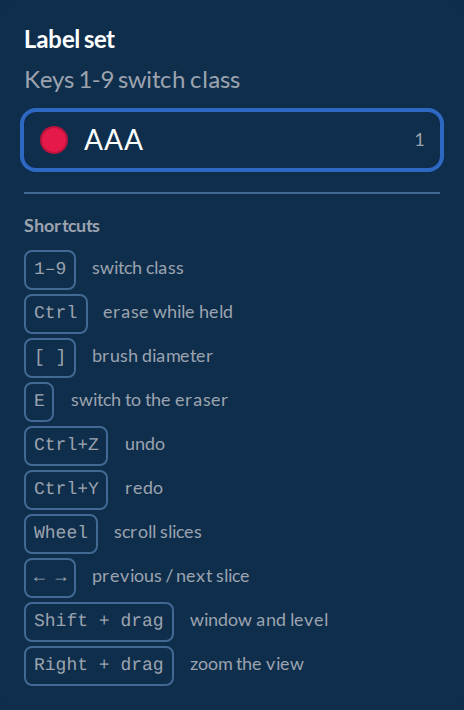
The label panel lists every shortcut, so there is nothing to memorise: the ones above, plus 1-9 to switch class, [ and ] for the brush diameter, E for the eraser, the wheel or the arrow keys to move between slices, and right-drag to zoom.
Starting From an Earlier Reading
If you have already read this CT somewhere else, opening it in a project first shows a copy dialog. Nothing is copied until you choose.
- One row per earlier reading: the project name, whether it is a completed version or a draft in progress, and the date. Old readings made outside any project appear as Free reading (no project).
- Only your own readings are listed, never a colleague’s.
- The most recent completed version is preselected.
- The classes that this project does not have are left out of the copy. The dialog shows which ones before you continue, so nothing disappears unnoticed.
- Start empty begins a blank reading instead.
- Clicking outside the dialog does nothing: you have to choose a row or Start empty.
A copy is a starting point inside this project; the reading it came from stays as it was.
Saving
There is no Save button: the editor saves on its own, a few seconds after you stop working. The indicator near the toolbar tells you where things stand — Saving… while a save is in flight, Saved once it has landed.
If the same case was changed elsewhere while you were working, the save is refused rather than allowed to overwrite, and the editor tells you instead of silently discarding either side.
Your work is also kept in the browser as a fallback while a save is failing, so a network hiccup does not cost you the session.
Completing a Case
Complete freezes your current work as a version — immutable, and numbered. The case then opens read-only, with a banner saying so.
That is not the end of it. Create new version reopens the case for editing, and completing again makes the next version; you do not need anyone’s permission and nothing is overwritten. Earlier versions stay exactly as they were.
Only mark a case complete when it is genuinely finished — the completion is what the dataset freeze looks for when assembling a training set.
Coming Back, and Coming From Elsewhere
Back to the project’s name in the top bar returns you to the project you came from, named so you can see where you are going. If you have strokes that have not been saved, it asks before leaving rather than discarding them.
If you have already annotated the same case in an earlier project, the editor says so when you open it and offers the choice: start from those annotations, or start empty. Classes are matched by name, and if this project has no class by one of those names, the dialog tells you which annotations loading would leave out. Either way, the earlier project’s completed versions are kept.