
Docs /Medical Workflow Segment and Reconstruct
3D Reconstruction: CleanUp and Smoothing
In LeaRes, the 3D surface is generated automatically when you segment an anatomy. Reconstruction therefore means cleaning up that auto-generated surface so it is smooth and well-formed enough for visualization and simulation. This work happens in the Geometry editing group on the vertical toolbar of the 3D viewer.
How the Surface Is Created
When a segmentation method completes, LeaRes builds an initial triangulated surface from the segment automatically — there is no separate Marching Cubes step to configure and no exposed iso-value parameter. The CleanUp tools then let you smooth, simplify, and tidy that surface.
Note: Because the surface already exists after segmentation, these tools are optional. Use it when the raw surface looks blocky, has small disconnected fragments, or is too dense.
Prerequisites
Before cleaning up a surface, make sure you have:
- Completed segmentation of the target anatomy (see Organ Segmentation)
- The produced segment visible in the Select segments list
Opening the Geometry Editing Tools
Surface cleanup is not in the Segment and Reconstruct panel. It lives in the Geometry editing group on the vertical toolbar next to the 3D viewer.
- With a segmented anatomy loaded, click the Geometry editing group button on the vertical toolbar
- The group expands into one sub-button per tool
- Click a tool to open its side flyout, set the parameters, and press Apply
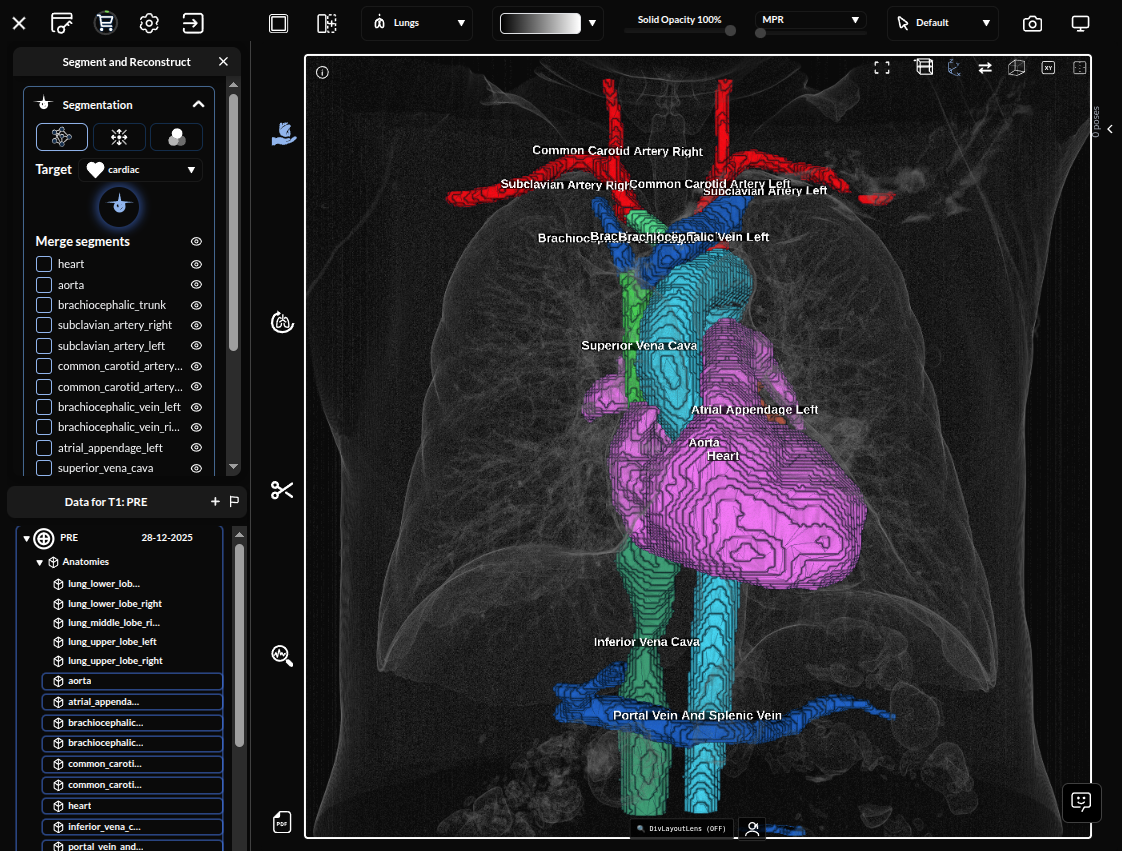
The group provides:
- Smooth surface
- Decimate surface
- Remove small bits
- Edit mask
- Select mask
- Mesh morphing (engineering users only)
Smooth Surface
Smoothing removes the staircase artifacts that come from converting voxels into a surface.
Smoothing Methods
Choose one of three methods:
| Method | Where it runs | Strength slider |
|---|---|---|
| Poisson (default) | server-side | ignored |
| Taubin | server-side | 0–1, default 0.5 |
| Laplacian | server-side | 0–1, default 0.5 |
All three run on the server. For Taubin and Laplacian the strength maps to an iteration count (iterations = 100 × strength): higher values produce a smoother surface, and very high values erode fine detail. For Poisson the slider has no effect.
Applying Smoothing
- In the Geometry editing group, choose Smooth surface
- Select the method (Poisson, Taubin, or Laplacian)
- For Taubin or Laplacian, set the strength with the slider
- Press Apply
Tip: Laplacian also makes the surface watertight, which Taubin deliberately does not. Choose Laplacian when you need a closed surface for simulation.