
Docs /Medical Workflow
Creating a Patient and Event
Learn how to import medical imaging data into LeaRes. This tutorial covers creating patient records, organizing events and acquisitions, and uploading DICOM files for visualization and analysis.
Understanding the Data Structure
Before uploading, familiarize yourself with LeaRes’s hierarchical organization:
- Patient: Top-level record containing all medical data for one patient
- Event: A medical event or imaging session (e.g., “2024-01-15_CT”)
- Acquisition: Individual scan or imaging acquisition (e.g., “Chest CT”)
- Series: DICOM series data containing the actual images
Step 1: Create or Select a Patient
Creating a New Patient
There is no patient form. Creation is a single click, and the patient is named automatically.
- Open the Projects and Patients window
- Expand the database you want the patient to live in
- Click the + button next to the database name (tooltip: Create new patient in …)
The patient is created immediately with an auto-generated name. Rename it afterwards with Edit patient name.
What is actually stored. The patient record holds only name, gender, age, habits and comorbidities, and the last four are populated with placeholder defaults. There is no field for date of birth, MRN, or medical history. Real demographics come from the DICOM header of the study you upload and are read-only.
Selecting an Existing Patient
- Browse the patient list in the Projects and Patients window
- Double-click a patient to open it
- The patient’s events and acquisitions appear in the ActionsTree panel
Step 2: Add Events to the Patient
Events are not created by hand — there is no Add Event button. A patient is populated by bringing data in: each upload creates its own event, with the date and type taken from the data and a server-generated identifier.
Everything goes through the Upload Data panel. Open it from the patient preview (single-click the patient, then the blue Upload Data button in its header) or, with the patient loaded, from the + button in the Data panel header (Upload events/acquisitions). The panel shows the patient it is for at the top.
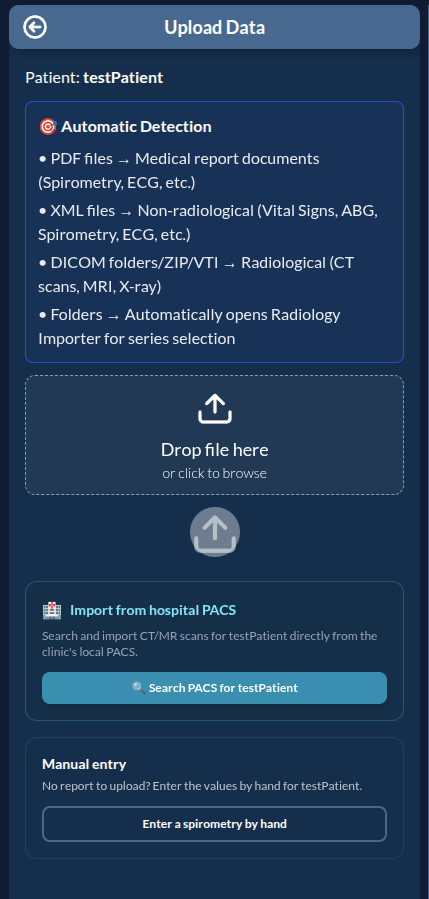
The panel offers three ways in:
- Drop a file (or click to browse). The type is detected automatically, as the Automatic Detection box explains:
- PDF → a medical report (spirometry, ECG, …): you are asked which kind of record it is
- XML → non-radiological measurements (vital signs, ABG, spirometry, ECG, …)
- DICOM folders, ZIP, VTI and the other volume formats → a radiological event (CT, MRI, X-ray); a dropped folder opens the Radiology Importer
- Import from hospital PACS — Search PACS for patient finds CT/MR studies on the clinic’s PACS and imports them. This section is shown only when the PACS module is enabled for your installation.
- Manual entry — Enter a spirometry by hand opens a form to type in the values of a spirometry when there is no report to upload.
Each of these adds a new event to the patient. For the radiological path in detail, see Uploading and Viewing DICOM Data.