
Docs /Active Learning Active Learning
Annotating with Boxes
In a detection project the label is a box around each object, not a painted mask. The editor is the same, but the tools and the rules differ — and the difference is not cosmetic.
Why a Box Is Not a Small Mask
A box carries less information than a mask, and the two do not convert into each other:
- From a mask you can compute a box, but you throw away nearly everything doing it
- From a box you cannot recover the mask at all — the shape was never recorded
That is why the task freezes at the first draft, and why a detection project and a segmentation project can never be the same project.
Drawing a Box
- Open the case as usual — see Finding Your Cases
- Select the box tool in the toolbar
- Press, drag across the object, release
The box appears as a coloured outline — an outline and not a filled shape, so that the tissue inside stays visible. It belongs to the label currently active in the label panel.
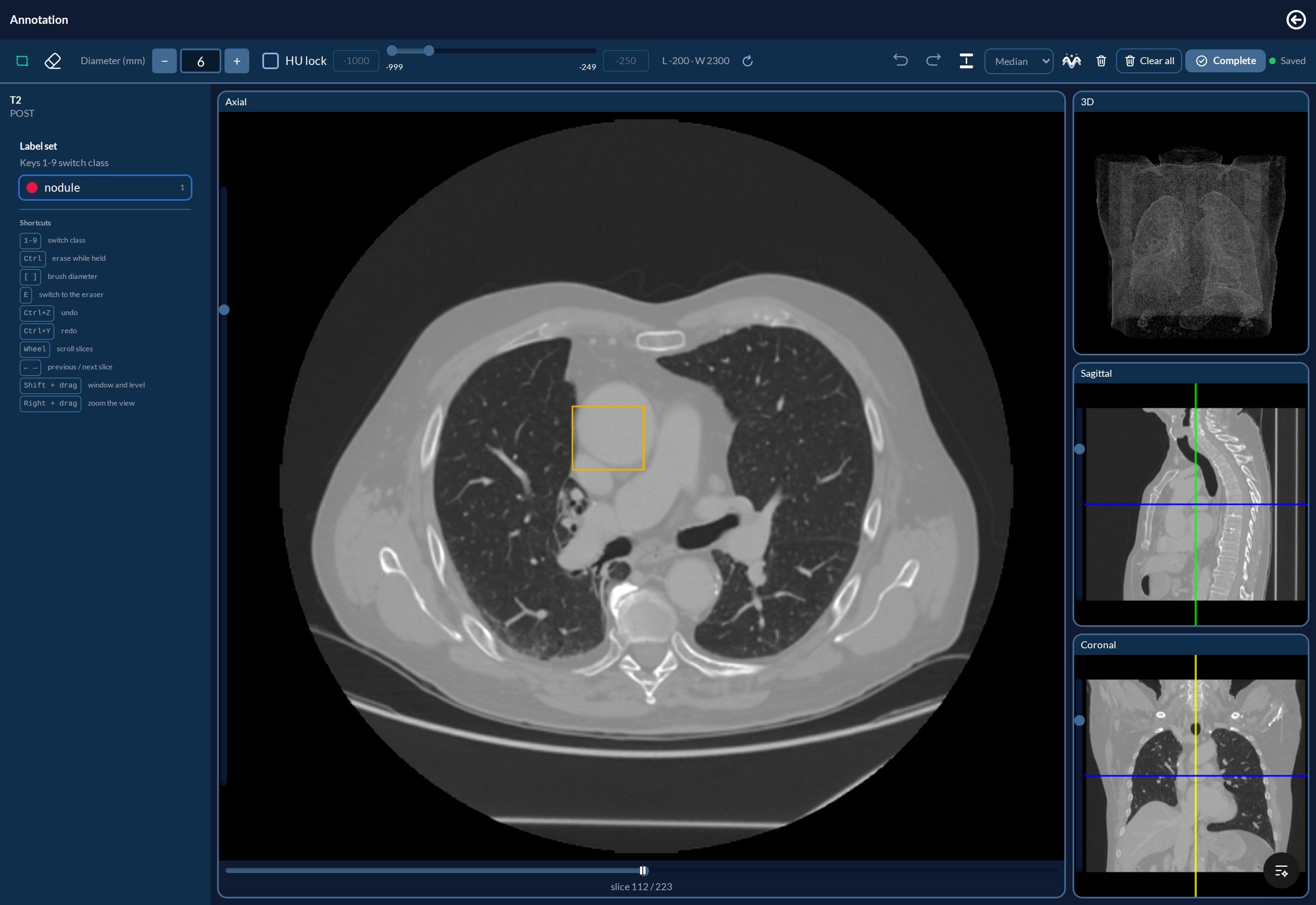
Boxes are axis-aligned and three-dimensional. A box drawn on one slice covers the slice range you dragged through; it is drawn only on the slices it actually crosses, so scrolling away from it makes it disappear from view without removing it.
The box lands on the slice you are looking at, and that slice is ticked on the slice bar as annotated — so the bar shows where the boxes are without your having to scroll for them.
A single click still makes a box — one voxel thick, on purpose. Clicking is not a mistake to be rejected; it marks something small.
Removing a Box
Select the eraser and click inside the box you want gone. In a detection project the eraser removes boxes; it never paints.
When boxes overlap, the click removes the smallest one containing the point. This is what lets you delete a small nodule drawn inside a larger lesion — with any other rule, the enclosing box would always win and the inner one could never be reached again.
Ctrl+Z brings a box back. Undo covers box removals as well as brush strokes, so deleting the wrong one costs a keystroke, not a redraw. Ctrl+Y puts it away again.
What You Will Not See
A detection project offers only the box and the eraser. The brush, fill and smooth brush are hidden: they act on voxels, which are not the label here, and showing them would promise an operation that does not exist.

Compare it with the same toolbar in a mask project: same diameter and HU lock, but four tools instead of two. What is missing is missing on purpose.
Saving and Completing
Identical to a mask project: the editor saves on its own a few seconds after you stop, the indicator shows Saving… then Saved, and Complete freezes the work as a numbered version that Create new version reopens when you need to go back to it. See Completing a Case.
Back to the project’s name, the clearing buttons and the offer to load annotations from an earlier project all work exactly as they do on a mask project.
Clear all annotations on this slice and Clear all are there too. Clear all asks first, and — like every other change here — Ctrl+Z puts it back.