
Docs /Engineering Workflow
Importing Geometry
The first step in the LeaRes engineering workflow is importing your 3D geometry. LeaRes supports several import methods: dragging and dropping .vtp or .stl files, browsing connected OnShape CAD documents, and importing existing anatomies that were segmented in the medical workflow. This tutorial covers how to enter the engineering workspace, open a project, and bring geometry into LeaRes.
Switching to the Engineering Workspace
LeaRes opens in the medical workspace by default. The engineering workspace is reached with a single toggle.
Step 1: Toggle to Engineering
- Locate the workspace toggle (
#panel-mode-toggle) labeled Switch to engineering - Click it to enter the engineering workspace
- The same control now reads Switch to medical if you want to return
Note: There is no separate “Engineering” toolbar button or “Modules” menu. The toggle is the only way to switch workspaces.
Opening a Project
Engineering work is organized into projects, each containing one or more versions of a geometry.
Step 1: Open the Projects Window
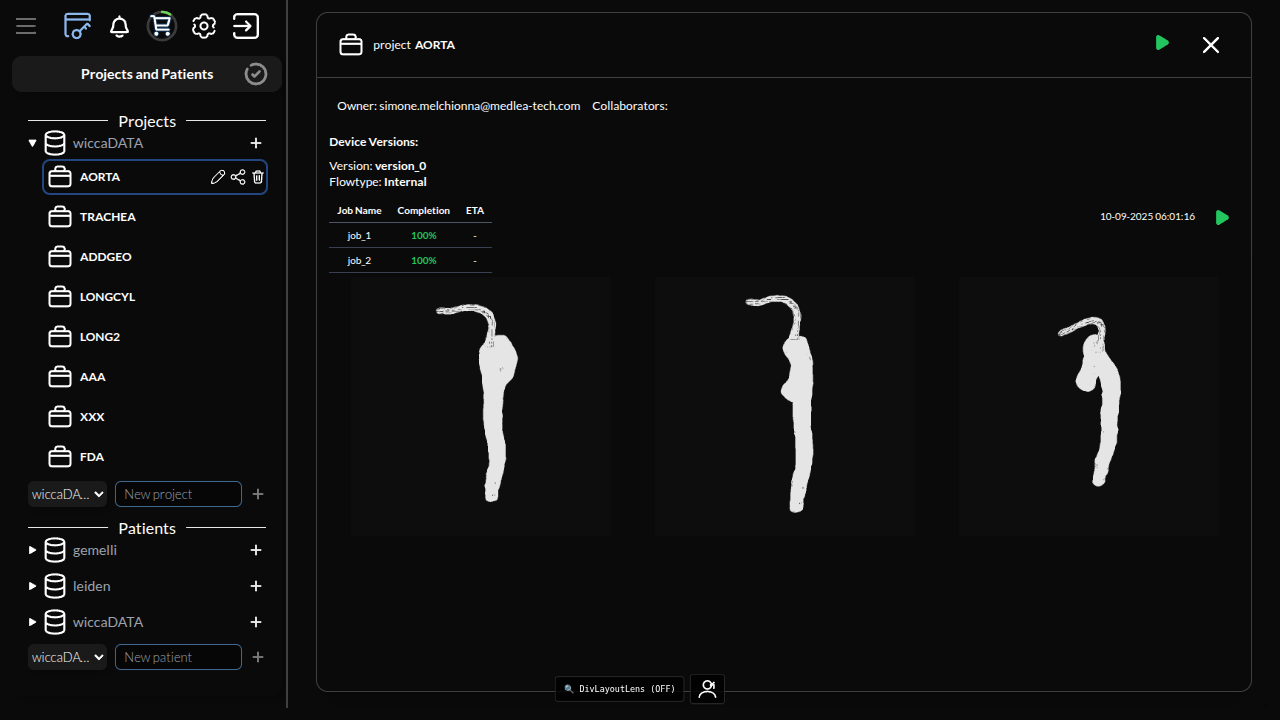
- Click the database button to open the Projects & Patients window
- Available projects are listed alongside patient databases
Step 2: Open a Project Version
- Double-click the project you want to open
- Double-click version_0 to load that version into the viewer
The geometry (if any) loads in the 3D viewer, and the engineering tools become available.
Importing Geometry with the Geometry Importer
The Geometry Importer panel offers three ways to bring geometry into a project version.
Method 1: Drag & Drop a File
This is the most direct method for geometry exported from CAD or other tools.
- Open the Geometry Importer panel
- Drag a
.vtpor.stl(STereoLithography) file onto the drop area - The geometry is uploaded and appears in the 3D viewer
Tip: Both
.vtpand.stlare surface formats. Export from your CAD tool using its native mesh export rather than a screen-captured mesh, and keep the original CAD file for reference.
Next Steps
Continue to Importing from OnShape and Anatomy.