
Docs /Engineering Workflow
Importing from OnShape and Anatomy
This chapter continues the Geometry Importer methods, covering the OnShape and Anatomy import paths, how to review the imported geometry in the viewer, and troubleshooting import issues.
Method 2: Browse OnShape
LeaRes integrates with the OnShape CAD platform so you can pull geometry directly from your documents.
- In the Geometry Importer, click Browse Onshape
- The OnShape browser lists your available documents
- Use the part-studio filter to narrow the list
- Select the part you want and confirm to import it into the project version
Method 3: Browse Anatomical Models
If you have already segmented anatomies in the medical workflow, you can reuse them as engineering geometry.
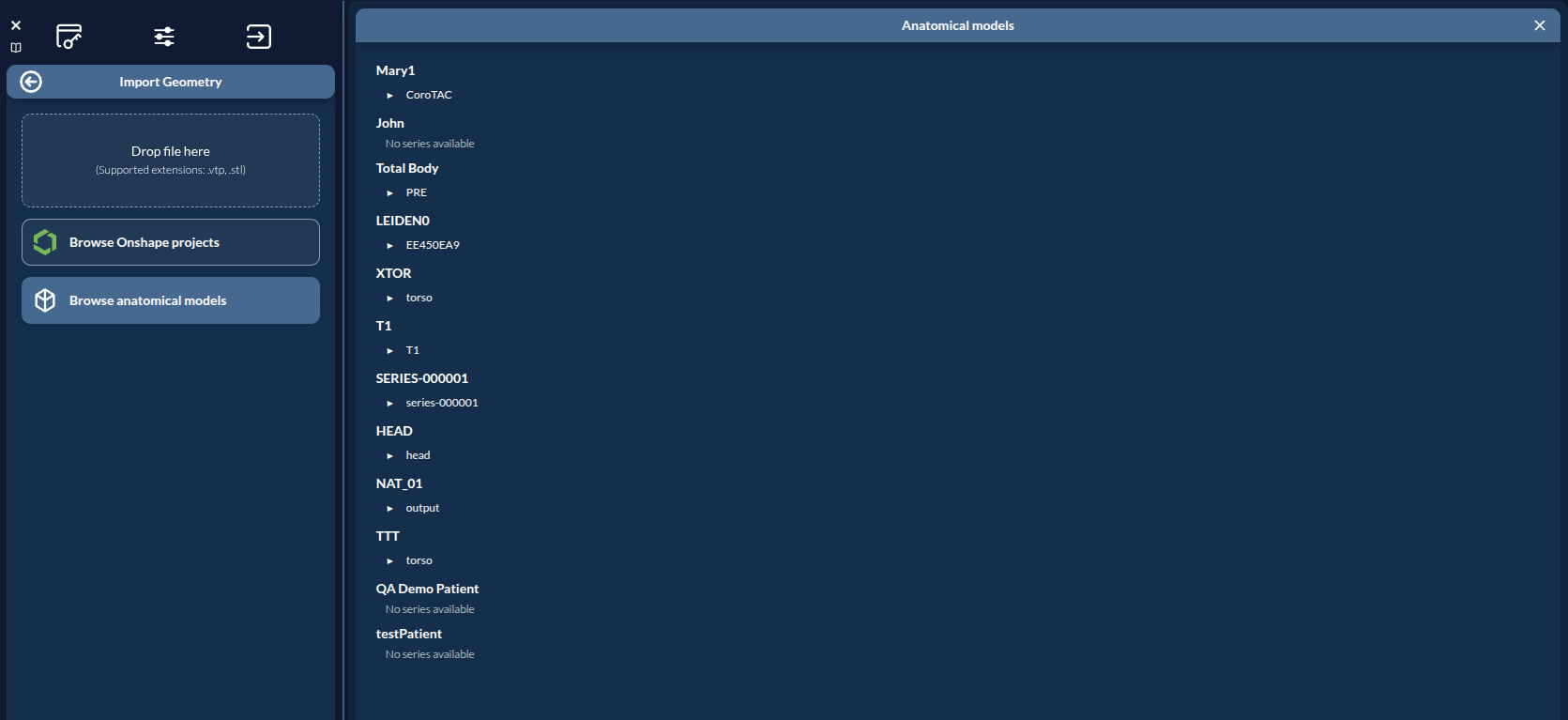
- In the Geometry Importer, click Browse anatomical models
- The Anatomical models window lists patients with their series; expand a series to see its anatomies
- Select one or more anatomies (multi-select is supported)
- Click Import
Selected anatomies are merged server-side into a single geometry and loaded into the project version.
Tip: The anatomical-models path is the natural bridge from the medical workflow. Segment and clean a vascular or airway surface in the medical workspace, store it as a project, then continue here in engineering.
Reviewing the Imported Geometry
After import, the geometry appears in the 3D viewer. Use the standard viewer controls to inspect it:
- Rotate: left-click and drag
- Pan: middle-click and drag (or
Shift+ left-click) - Zoom: scroll wheel
Confirm the geometry is oriented as expected and represents the region you intend to simulate before moving on.
Troubleshooting
Import Fails
Problem: A dropped file is rejected or fails to upload.
Solutions:
- Confirm the file is a valid
.vtpor.stl(open it in ParaView or MeshLab first) - Re-export from your CAD tool and try again
- Verify the file is not empty or corrupted
Geometry Appears Empty
Problem: The import succeeds but the viewer shows nothing.
Solutions:
- Rotate or zoom out — the geometry may be off-screen
- Verify the file actually contains mesh data
- Re-open the project version (database button → double-click project → double-click version_0)
OnShape Documents Not Listed
Problem: Browse OnShape shows no documents.
Solutions:
- Confirm the OnShape document is shared and accessible to your account
- Check your network connection
- Re-open the OnShape browser
Next Steps
With your geometry imported, you’re ready to define the regions where fluid enters and exits. Continue to Defining Zones to learn how to paint boundary zones on your geometry.