
Docs /Getting Started
Measurement & Comparison
Measurement Tools
The measurements dropdown (measures-dropdown) provides on-image measurement tools. After selecting a tool, you also choose the working plane (x / y / z).
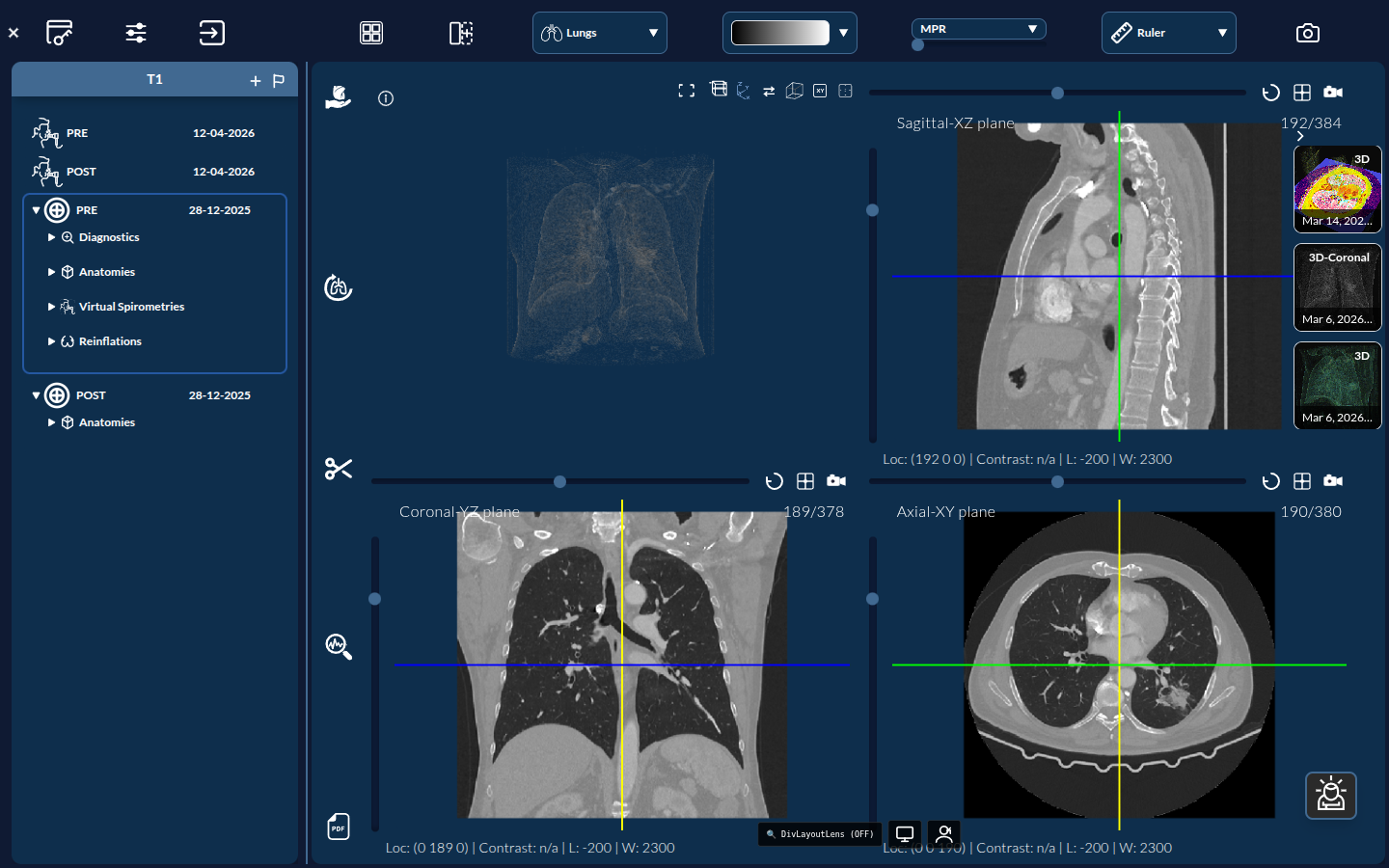
| Tool | Purpose |
|---|---|
| Ruler | Measure a straight-line distance |
| Annotation | Place an arrow with a text label |
| Ellipse | Draw an ellipse and read region statistics (average, min, max) |
| Circle | Draw a circle and read its radius |
| Default | Reset / clear measurement mode |
Note: Ellipse statistics are computed over the enclosed voxels, making this useful for quick density readouts on a slice.
Comparative View
The Compare button lets you view two acquisitions side by side, for example PRE versus POST.
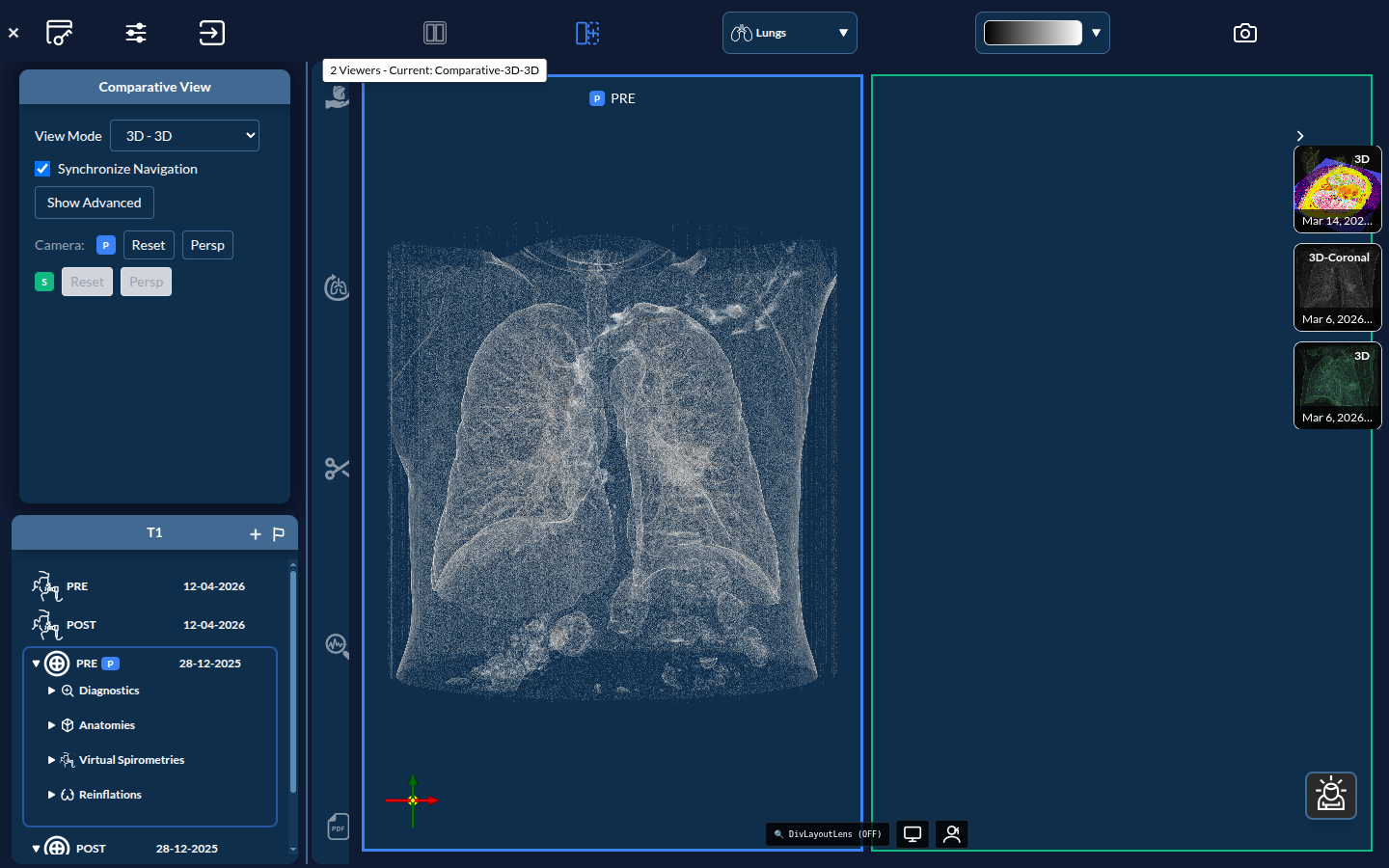
- Enable comparative mode with the button.
- Choose the comparison layout from the layout combobox (for example, “Axial - Axial”), which sets the plane shown in each pane.
- The two datasets render together for direct visual comparison.
Tip: Comparative view is well suited to before/after assessments, such as reviewing a baseline scan against a post-treatment scan.